Virtual Visits
Walk-in Clinic Virtual Visits are temporarily unavailable as we transition to a new health record system.

COMING SOON!

Call our scheduling line at 541-472-4777
to schedule a Virtual Visit
with your Primary Care provider.
Convenient, face-to-face care with one of our Walk-in Clinic providers is just a few clicks away.

Minor Medical
Issues
Issues
Chronic
Conditions
Conditions
Medication
Refills
Refills
Available M–F 8–4:30 and Saturday 9–12:30
Follow the Steps Below in MyChart to Schedule Your Virtual Visit
To download a PDF of these instructions, click here.
Scheduling a MyChart Virtual Visit
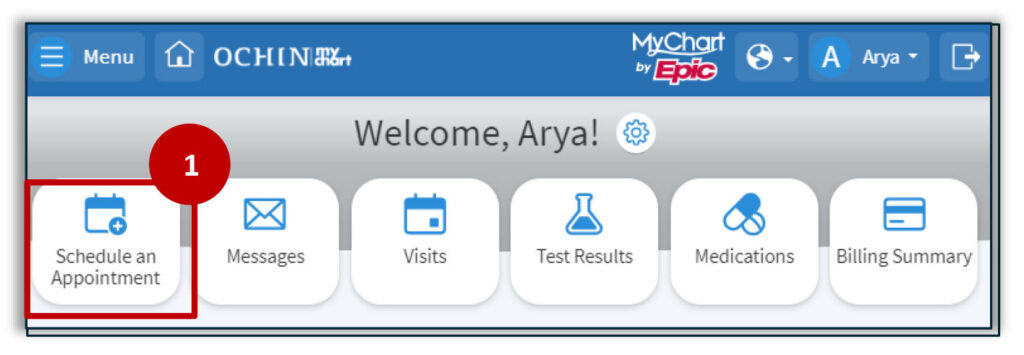
1. From the Home page, request an appointment by selecting Schedule an Appointment.
2. Select Virtual Visit.
If selecting a provider that does not provide Virtual visits, the Virtual visit type will not be available.

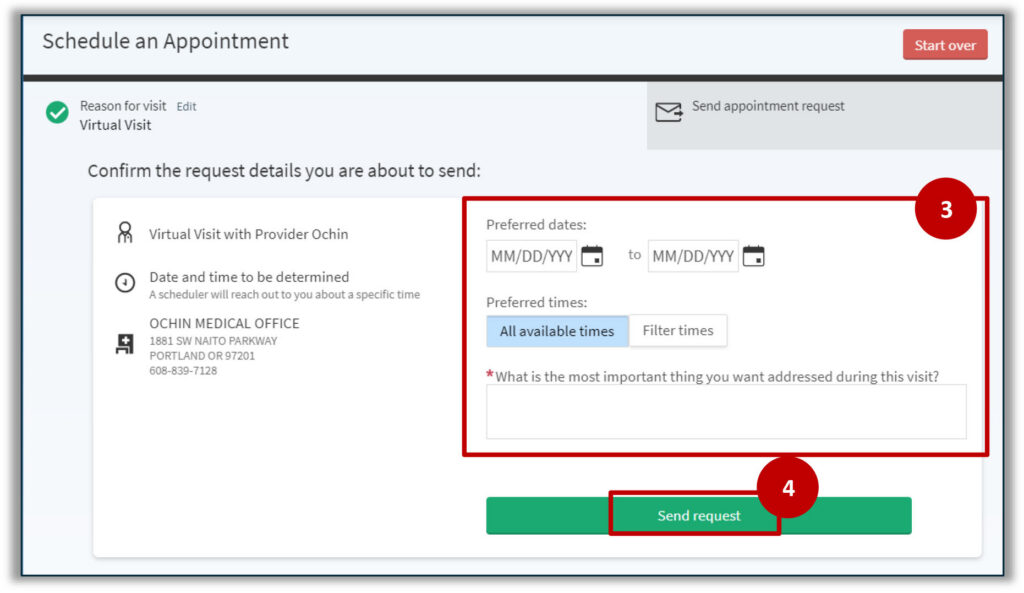
3. Enter the following information:
- Preferred dates to schedule the appointment within.
- Preferred times. All available times are the default, but the time can be made more specific. Select Filter times for more scheduling option requests.
- Comments about reason for requesting a visit.
4. Click Send request.
Appointment Confirmation
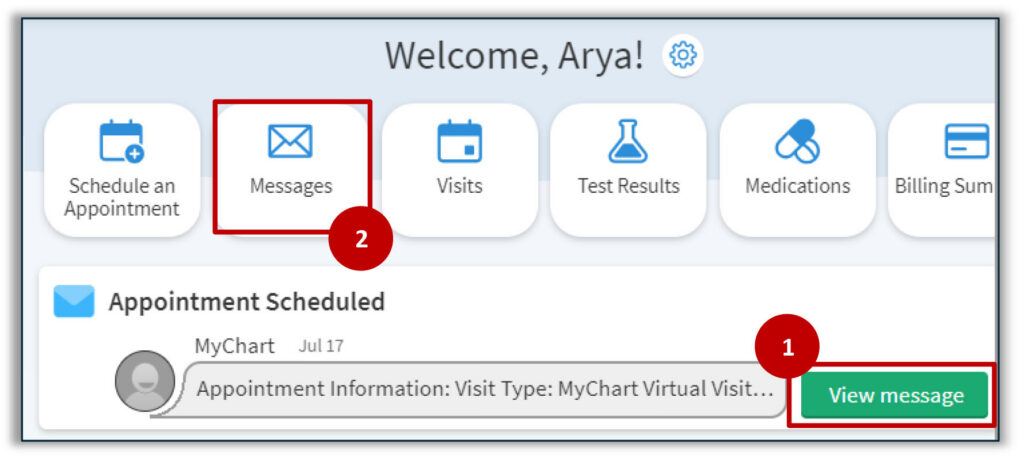
When requested virtual appointments are scheduled, a notification populates on the Home page that a message was sent, and the appointment is viewable in Visits.
1. Select the message to view appointment details and instructions.
2. This message remains in the Message Center until moved to trash.
Consent Form for Patients
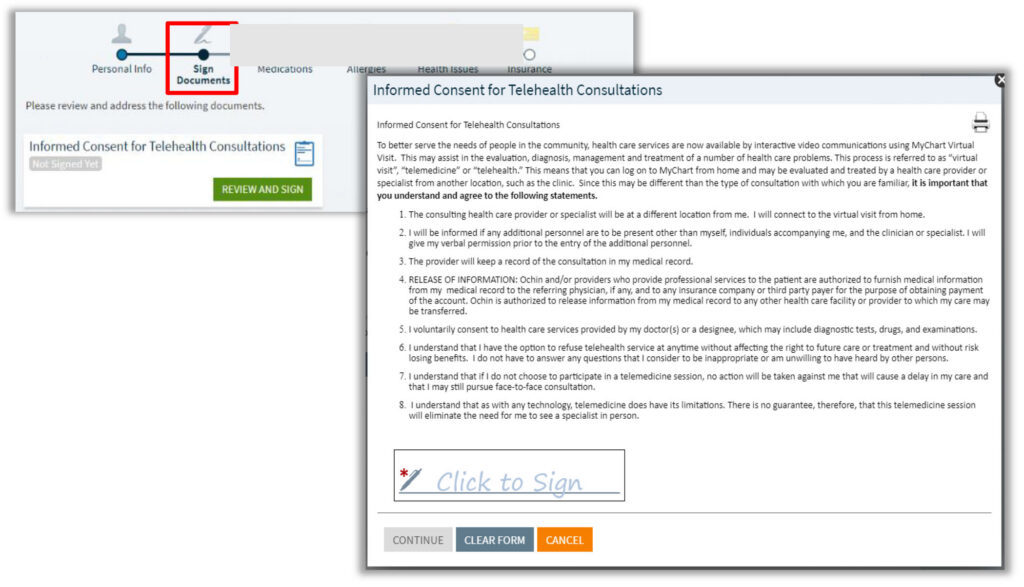
OCHIN has added a consent form to sign prior to attending your first MyChart Virtual Visit during MyChart eCheck-in. This consent is only needed once per patient.
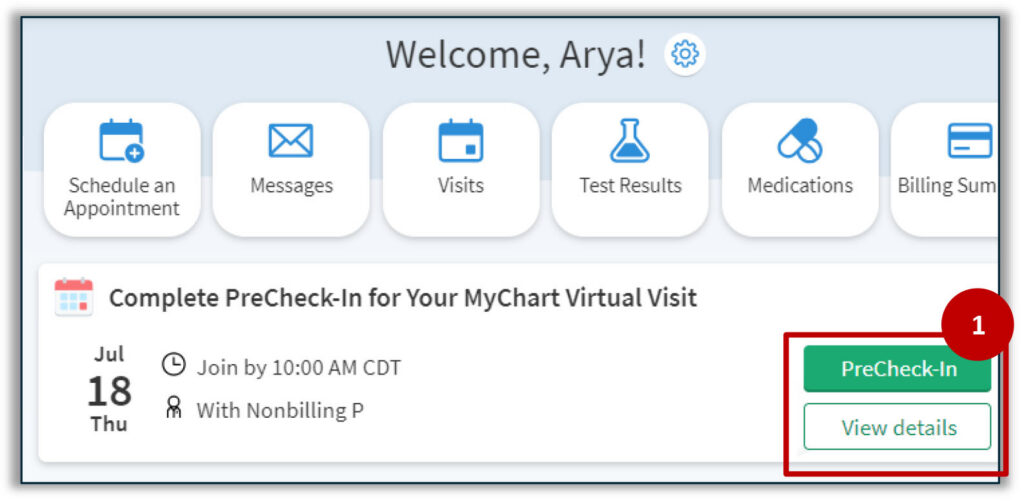
PreCheck-In for Appointment
The PreCheck-In and View Details buttons are available 3 days prior to the day of appointment. The PreCheck-in appointment link displays in the Upcoming Visit section and patient-entered questionnaires associated with the visit are available to be completed up to 30 minutes after the appointment time.
When a qualifying video visit appointment is within five minutes of the start time you can skip PreCheck-in questions about medications, allergies, health issues, insurance, questionnaires, and payment collection to avoid being late for your scheduled video visit. The MyChart system displays a message: “It’s time to join your video visit. Your provider will cover any incomplete topics during your visit.”
Note: The PreCheck-in appointment link displays in the Upcoming Visit section and patient-entered questionnaires associated with the visit are available to be completed up to 30 minutes after the appointment time.
1. Select PreCheck-In to begin completing information prior to the visit.
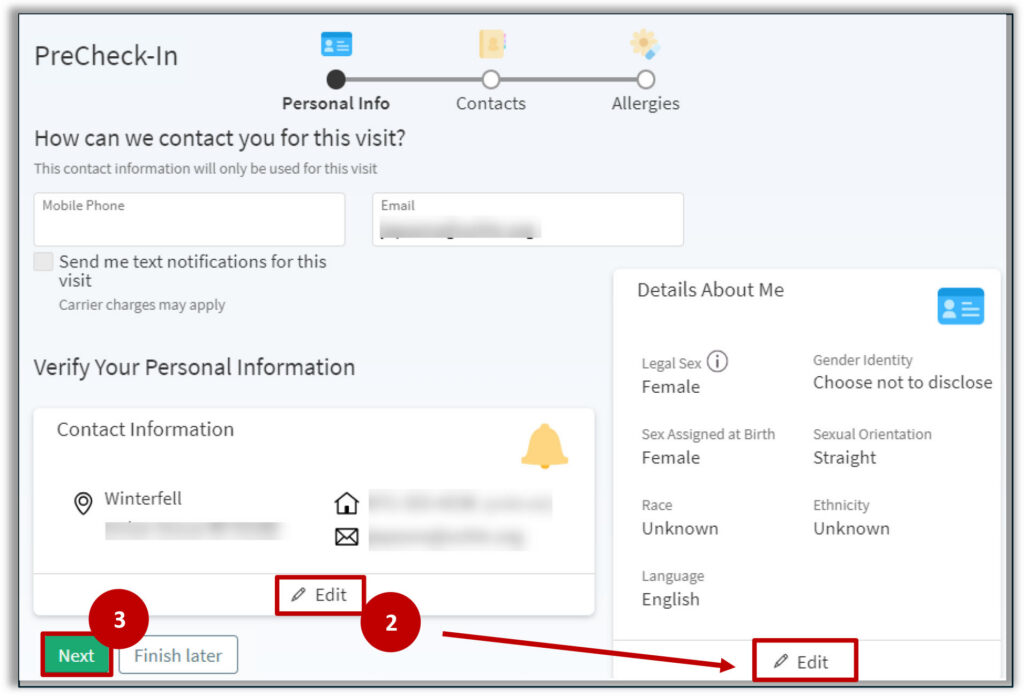
MyChart PreCheck-in prompts you to verify your Personal Information, Contacts, Allergies, and any Questionnaires prior to joining the appointment.
2. Click Edit to update any information on the screen.
3. Click Next.
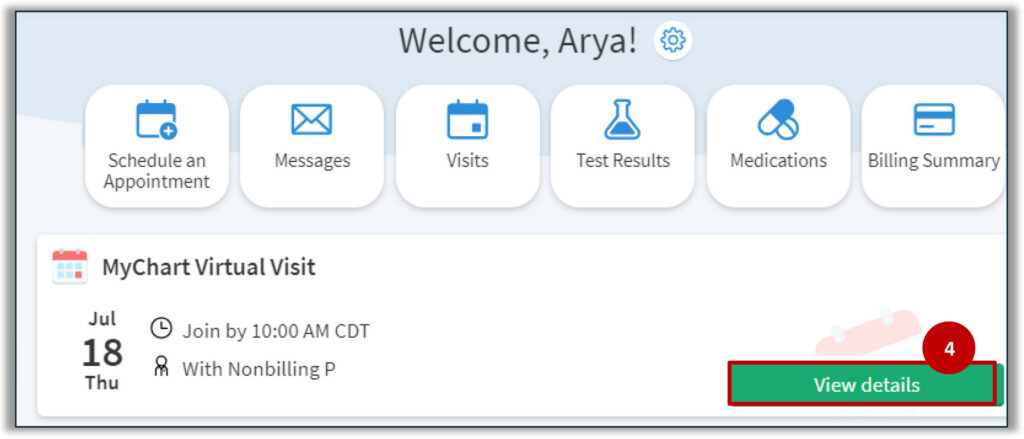
4. On the day of the appointment click the View Details button from the Home page.
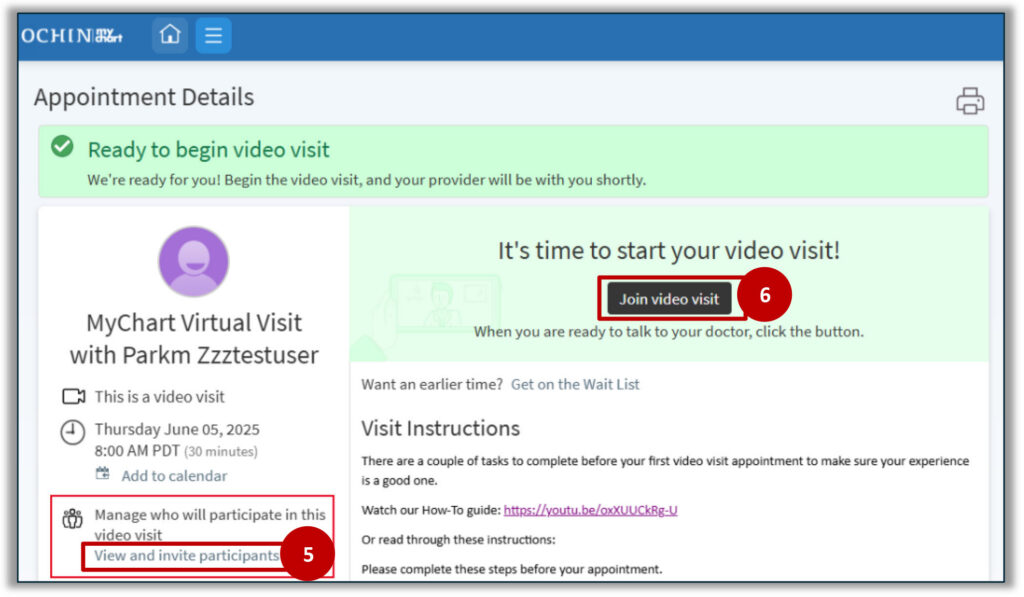
5. MyChart allows guests to be invited to a video visit by selecting View and invite participants link in the ‘Manage who will participate in this video visit’ section.
6. Click the Join video visit button. Note: The option to start the video portion of the visit is 30 min before appointment time.
Email notifications are not sent regarding upcoming video visits or notify you when the provider is running late.
Arriving for an Appointment
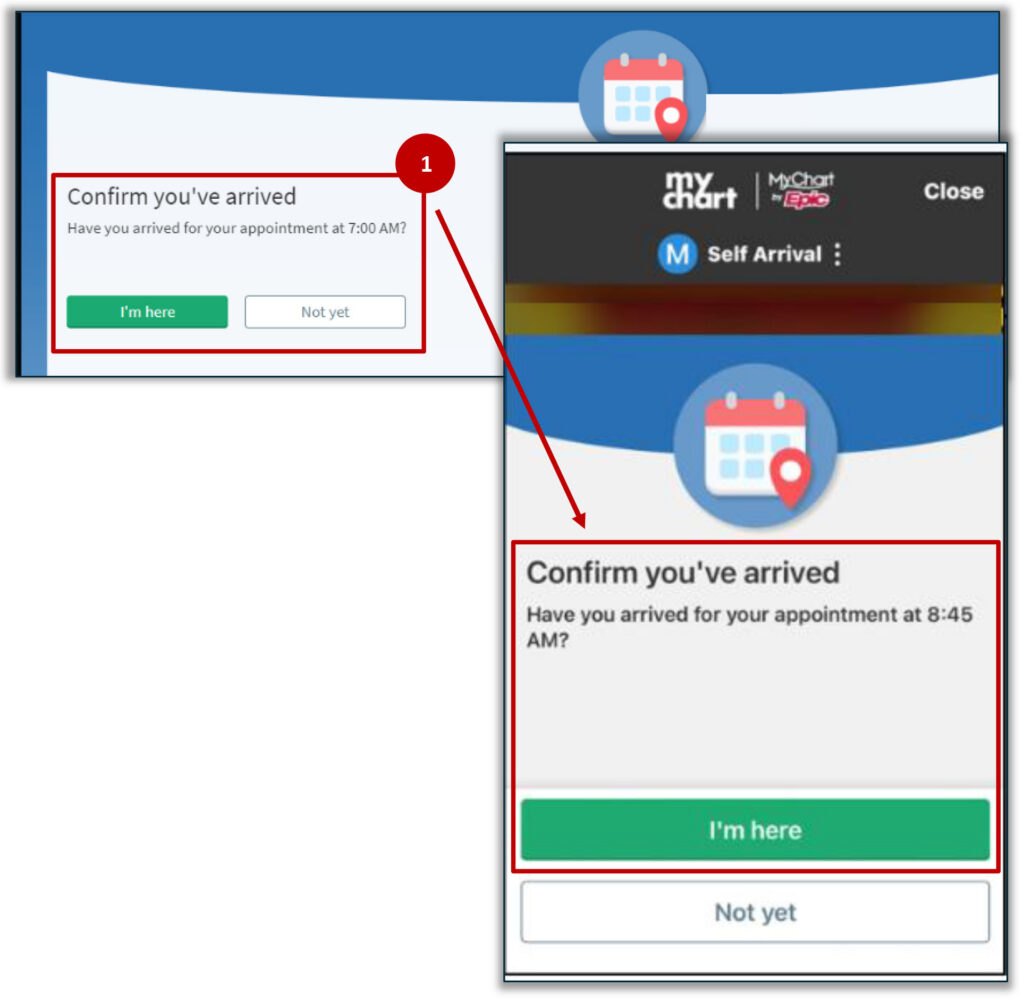
Hello Patient, MyChart’s appointment arrival activity, is mobile-optimized, giving you a consistent experience whether arriving using the MyChart mobile app or by accessing the MyChart website on a mobile or desktop browser.
Note: For the MyChart mobile app, you must update the app to version 10.8 or higher.
1. Click the I’m here button.
2. Zoom will open in a web browser. You have the option to launch the visit through the Zoom app, or from your web browser.
3. For the moblie app, click Begin Visit. If you receive any requests to allow camera or microphone, select Allow.
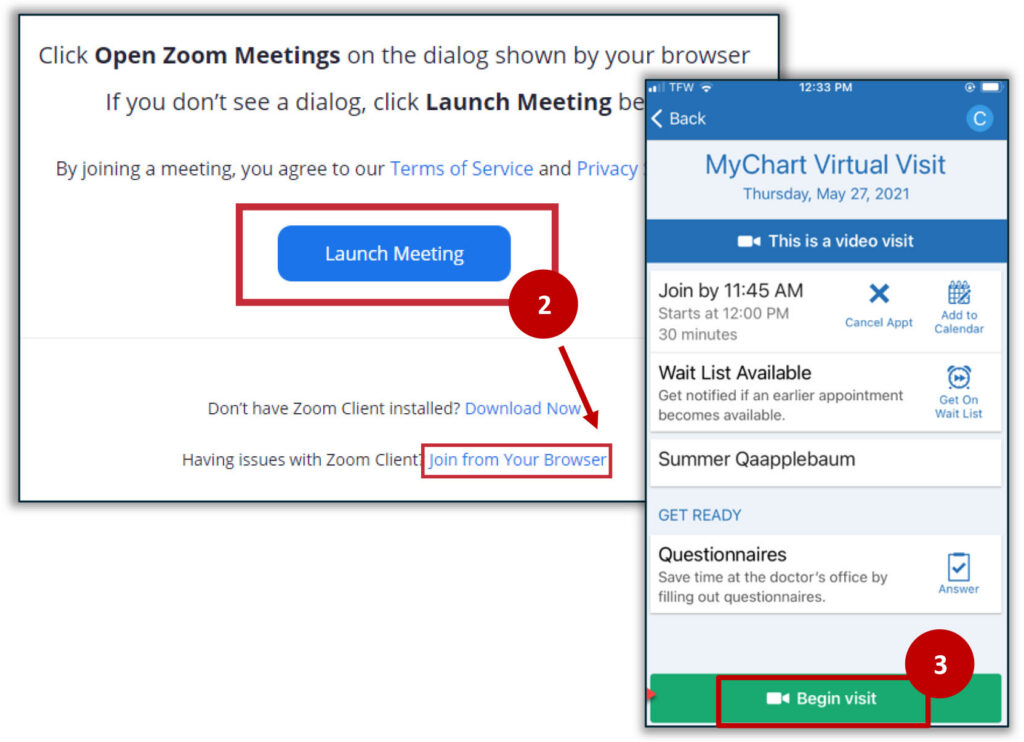
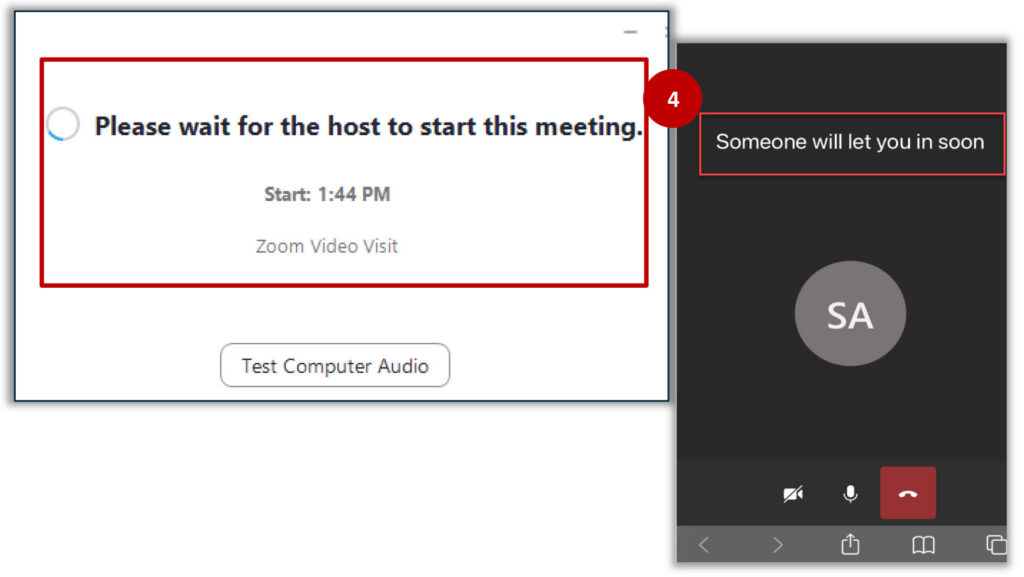
4. Once the meeting launches, if the provider has not started their Zoom video session there will be a message stating Please wait for the host to start this meeting. From the mobile app you will see the message Someone will let you in soon.